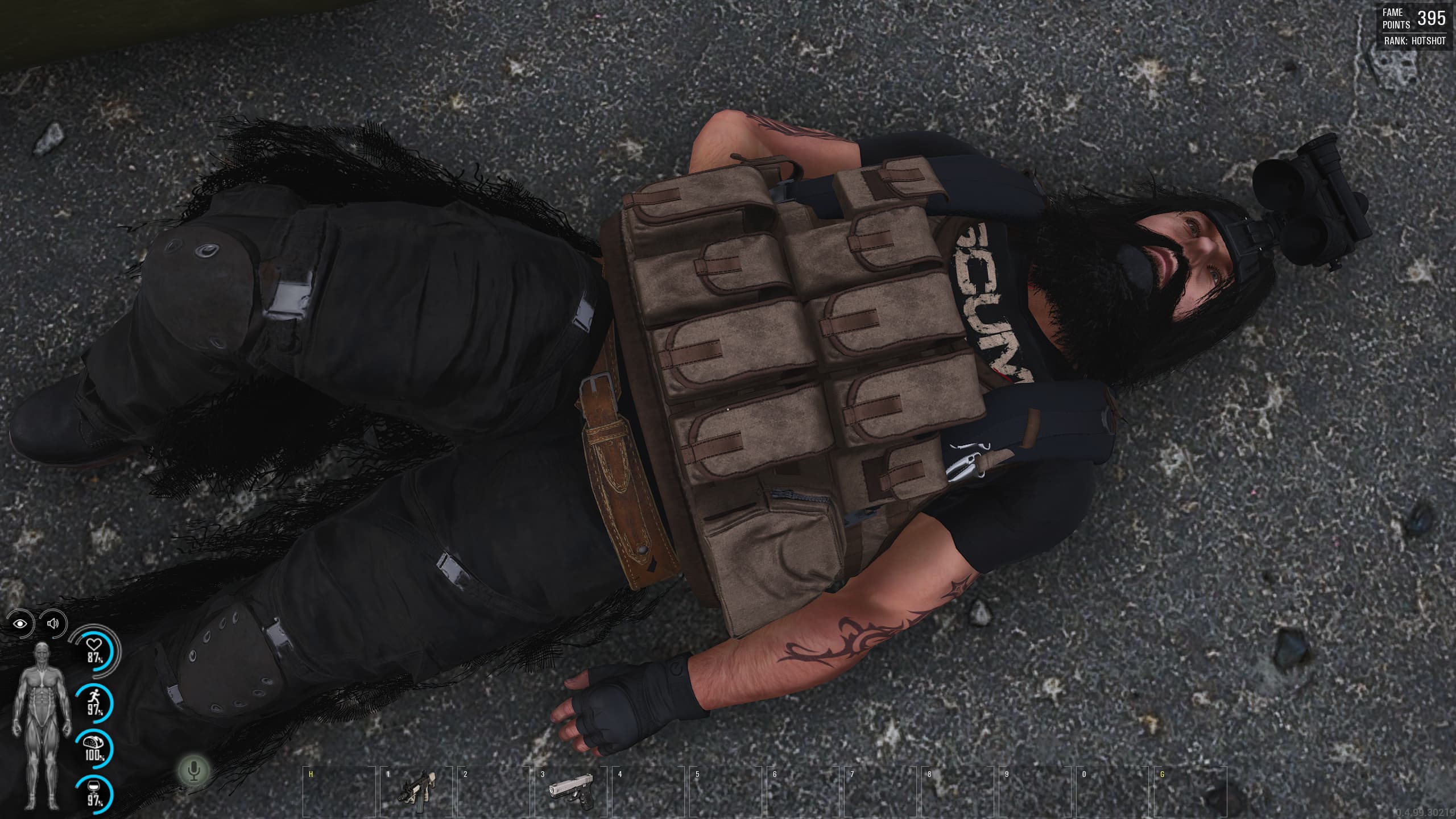
This SCUM admin commands guide has been updated to its latest version on the 2nd of June 2026.
This is a complete reference for SCUM admin commands as of the 1.0 release in June 2025, covering every console command and cheat, from spawning items to toggling immortality. It includes the admin access tiers, the single-player versus dedicated-server differences, and a full command history timeline.
SCUM’s admin command set has grown from a humble nineteen at launch into a sprawling toolkit, and the 1.0 release in June 2025 handed single-player users the full developer arsenal that used to be locked behind elevated server access. This guide pulls all of it together in one place, organised by what you are actually trying to do, from spawning items to toggling immortality. It is built as a reference to keep open in a second window, not a read-through. The in-game autocomplete will help you find a command, but it will not warn you that #DestroyAllVehicles expects you to ask nicely. For a full verdict on the game these commands belong to, see our SCUM 1.0 review.
Overview
SCUM (developed by Gamepires, released August 2018 on Steam Early Access, version 1.0 released June 17, 2025) gives server administrators and single-player users a powerful set of console commands, also called cheats, to manage, customise, and troubleshoot their game world. With the 1.0 release, a significant expansion occurred: commands previously restricted to developer or elevated users were made available to all players in single-player mode. The active command set has grown dramatically from the original 19 commands at launch in 2018.
How to Use SCUM Admin Commands
All SCUM admin commands are entered via the in-game chat box (default: press T), prefixed with a # symbol, and are not case-sensitive, so #spawnitem and #SpawnItem behave identically. The game supports auto-complete once you begin typing after the # sign, and typing # on its own prints the full list of commands currently available to you. On a multiplayer server you need the right admin tier (covered next); in single-player, the 1.0 update made the whole set available with no setup.
Admin Access Levels
Before using commands, it helps to understand that SCUM has multiple admin tiers with different access rights.
Standard Admin (AdminUsers.ini)
Add a Steam64 ID (one per line) to grant basic admin command access. Optional permission suffixes extend that access:
| Format | Access Granted |
|---|---|
76561198012345678 |
Basic admin commands |
76561198012345678[SetGodMode] |
Admin + God Mode (instant building) |
76561198012345678[ShutdownServer] |
Admin + server restart |
76561198012345678[SetGodMode,ShutdownServer] |
Admin + God Mode + restart |
76561198012345678[SetImmortality] |
Admin + immortality toggle |
Server Settings Admin (ServerSettingsAdminUsers.ini)
Add Steam64 IDs here (no suffixes) to unlock the in-game visual Admin Panel, accessible via the Escape menu. This panel allows real-time zone management: you can set custom zones by position, size, shape, and colour, then define what is Allowed, Blocked, or Ignored within them.
Elevated User (Developer Commands Access)
For the most powerful dev and debug commands on multiplayer servers, a Steam64 ID must be added to the elevated_users table in the server’s SCUM.db SQLite database file. On single-player, all these commands became available to everyone with the 1.0 update.
Information & Listing Commands
These commands display information about the server state, players, assets, and squads. They are available to all standard admins on both single-player and dedicated servers.
| Command | Syntax | Description |
|---|---|---|
# |
# |
Prints a full list of all available commands to the chat window (with autocomplete). |
#Announce |
#Announce <Message> |
Sends a server-wide announcement visible to all currently connected players. Useful for warnings, events, or restarts. |
#Location |
#Location <Player> |
Displays the X/Y/Z coordinates of the specified player. If no player is named, shows and copies your own location to the clipboard. |
#ListPlayers |
#ListPlayers |
Lists all connected players with their Steam64 ID, Steam name, and character name. |
#ListItems |
#ListItems <String> |
Lists all spawnable item IDs matching the search string. Leave blank to list every item (can be very long). |
#ListAnimals |
#ListAnimals |
Displays all spawnable animal IDs for use with #SpawnAnimal. |
#ListZombies |
#ListZombies |
Displays all spawnable puppet/zombie IDs for use with #SpawnZombie. |
#ListSpawnedVehicles |
#ListSpawnedVehicles [VehicleType] |
Displays all currently existing vehicles on the server, including their ID, last access time, alias (if renamed), and map location. Can filter by vehicle type (e.g. #ListSpawnedVehicles true SUV). |
#ListSquads |
#ListSquads |
Displays a list of all squads on the server with their Squad ID. |
#ListSquadMembers |
#ListSquadMembers <SquadID> <True/False> |
Displays all members of a squad including their Steam ID and squad rank. If true, copies the result to the clipboard. |
#ListMutedPlayers |
#ListMutedPlayers |
Displays a list of all currently muted players. |
#ListFlags |
#ListFlags [Page] [True] |
Lists all flags with their ID, owner, and map location. Added in Update 10-20-22. |
#DumpAllSquadsInfoList |
#DumpAllSquadsInfoList |
Copies complete squad information (names, IDs, ranks) to the clipboard. Added in Update 07-23-20. |
Environment & World Commands
These commands manipulate the game world: time, weather, lighting, and map configuration.
| Command | Syntax | Description |
|---|---|---|
#SetTime |
#SetTime <0-24> |
Sets the in-game time of day. 0 or 24 is midnight, 12 is noon. For example, #SetTime 8 sets it to 8:00 AM. |
#SetWeather |
#SetWeather <0-1> |
Sets weather intensity. 0 is clear, 1 is a maximum storm (heavy rain, wind, fog). Values in between allow finer control: 0.5 is the rain threshold, 0.8 a lighter storm. After setting, the weather system resets and eventually generates a new random pattern; storms are typically weighted to be followed by clear weather. |
#SetTimeSpeed |
#SetTimeSpeed <Value> |
Sets how fast the in-game clock progresses. Default is 1 (real time). Higher values speed up the day/night cycle. Added in Update 03-31-21. |
#NightBrightness |
#NightBrightness <0-1> |
Client-side only. Adjusts nighttime brightness. 0 is natural darkness, 1 is maximum brightness. Added in Update 12-21-20. |
#ReloadCustomMapConfig |
#ReloadCustomMapConfig |
Reloads custom map configuration (active zone, size) without restarting the server. Wait at least 30 seconds after saving changes before executing. Added in Update 08-21-20. |
#ShowFlagInfo |
#ShowFlagInfo <True/False> |
Shows the location and full information of player-placed flags on the admin map. Added in Update 06-15-21. |
#ShowFlagLocations |
#ShowFlagLocations <True/False> |
Shows only the location of flags on the map, with no additional info. Added in Update 06-15-21. |
#ShowVehicleInfo |
#ShowVehicleInfo <True/False> |
Shows all vehicles on the map with their information (type, owner, status). Added in Update 06-15-21. |
#ShowVehicleLocations |
#ShowVehicleLocations <True/False> |
Shows only vehicle map locations without additional details. Added in Update 06-15-21. |
Player Management Commands
These commands control individual players: moderation, fame points, appearance, and teleportation.
Moderation
| Command | Syntax | Description |
|---|---|---|
#Kick |
#Kick <Player> |
Kicks the specified player. They can reconnect afterward. Accepts character name, Steam name, or Steam64 ID. |
#Ban |
#Ban <SteamID64> |
Permanently bans the specified player by Steam64 ID. Kicks them immediately if online. |
#Unban |
#Unban <SteamID64> |
Lifts a ban on the specified player, allowing them to reconnect. |
#Mute |
#Mute <Player> |
Prevents the player from sending any in-game chat messages (player-initiated mute). #Mute and #Unmute are player-side commands; #Silence is the server-admin equivalent. |
#UnMute |
#UnMute <Player> |
Restores chat messaging ability for a previously muted player. |
#Silence |
#Silence <Player> [Duration (hours)] |
Admin-level chat suppression. If no duration is specified or 0 is entered, silences the player indefinitely. Added in Update 01-31-22. |
Player Visibility & Tracking
| Command | Syntax | Description |
|---|---|---|
#ShowOtherPlayerInfo |
#ShowOtherPlayerInfo <True/False> |
Shows all online players with their names on the admin map. Clicking a player dot teleports the admin directly to that player. Added in Update 06-25-20. |
#ShowOtherPlayerLocations |
#ShowOtherPlayerLocations <True/False> |
Shows all online player positions on the map as dots, without names. |
#ShowNameplates |
#ShowNameplates <True/False> |
Allows admins to see floating name tags above all players when in player mode (not drone mode). |
Identity & Appearance
| Command | Syntax | Description |
|---|---|---|
#SetFakeName |
#SetFakeName <FakeName> [Player/SteamID64] |
Sets a fake character name for a player. Shows on the kill leaderboard, BCU, squad list, name tag, kill notifications, and chat. Added in Update 09-25-20. Admins can set fake names for other players as of Update 09-10-21. |
#ClearFakeName |
#ClearFakeName [Player/SteamID64] |
Clears any fake name set for your character or the specified player. |
#SetHairLength |
#SetHairLength <0-1> |
Sets the head hair length of the invoking player. 0 is shaved, 1 is maximum length. |
#SetFacialHairLength |
#SetFacialHairLength <0-1> |
Sets facial hair length. 0 is clean-shaven, 1 is maximum beard length. |
Fame Points
| Command | Syntax | Description |
|---|---|---|
#SetFamePoints |
#SetFamePoints <Value> <Player> |
Sets the fame points of the specified player to the given value. If no player is specified, sets your own. This sets (not adds) the value. |
#SetFamePointsToAllOnline |
#SetFamePointsToAllOnline <Value> |
Sets fame points for all currently connected players to the specified value. |
#SetFamePointsToAll |
#SetFamePointsToAll <Value> |
Sets fame points for every player who has ever connected to the server, online and offline. |
God Mode
| Command | Syntax | Description |
|---|---|---|
#SetGodMode |
#SetGodMode <True/False> |
Enables or disables God Mode. Important: God Mode in SCUM enables instant base building (no need to fill blueprints with materials). It does not make you invincible or prevent death. To use it, [SetGodMode] must be appended to the admin’s Steam64 ID in AdminUsers.ini. |
Teleportation
| Command | Syntax | Description |
|---|---|---|
#Teleport |
#Teleport <X> <Y> <Z> [Player] |
Teleports the specified player to the given coordinates. If no player is specified, teleports you. Coordinates can be copied with Ctrl+C from the location string in #Location. |
#TeleportTo |
#TeleportTo <TargetPlayer> [Player] |
Teleports the specified player to another player’s position. If no source player is specified, teleports you to the target. |
#TeleportToMe |
#TeleportToMe <Player> |
Teleports the specified player directly in front of you. |
#TeleportToVehicle |
#TeleportToVehicle <VehicleID> [Player] |
Teleports the specified player to the vehicle with the given ID. Vehicle IDs come from #ListSpawnedVehicles. If no player is specified, teleports you. |
Squad Management
| Command | Syntax | Description |
|---|---|---|
#ResetSquadInfo |
#ResetSquadInfo <SquadID> |
Clears the squad’s name and information panel, generating a new random squad name. |
NPC, Animal & Puppet Spawn / Despawn Commands
These commands spawn and destroy entities in the game world. Spawn commands in multiplayer are restricted to server admins. As of Update 10-28-21, all spawn commands support an optional Location argument.
Spawning Items
| Command | Syntax | Description |
|---|---|---|
#SpawnItem |
#SpawnItem <ID> <Count> |
Spawns the specified item in front of the invoking player. Item IDs can be found with #ListItems. |
#SpawnItem (with ammo) |
#SpawnItem <MagazineID> <Count> AmmoCount <Fill%> |
Spawns a magazine or weapon with a specific ammunition fill percentage, e.g. #SpawnItem BP_Magazine_AK47 1 AmmoCount 50 for 50% full. Added in Update 04-21-22. |
#SpawnItem (with cash) |
#SpawnItem BP_Cash 1 CashValue 5000 |
Spawns cash with a specific value. Added in Update 04-21-22. |
#SpawnItem (with dirtiness) |
#SpawnItem <ID> <Count> Dirtiness <0-100> |
Spawns an item with a specified dirtiness level. Added in Update 09-10-21. |
#SpawnItem (at location) |
#SpawnItem <ID> <Count> Location "<X=... Y=... Z=...>" |
Spawns an item at a specific map coordinate. The location string can be copied from #Location (Ctrl+C). Added in Update 09-10-21. |
#SpawnItem (at player) |
#SpawnItem <ID> <Count> Location <SteamID64> |
Spawns an item at a specific player’s location using their Steam ID. |
#SpawnItem2 |
#SpawnItem2 <partial name> |
Improved item spawning using flexible partial-name matching, with no need for exact IDs, e.g. #SpawnItem2 ghillie jacket. Became available to all single-player players in 1.0. |
Spawning Vehicles
| Command | Syntax | Description |
|---|---|---|
#SpawnVehicle |
#SpawnVehicle <ID> |
Spawns a vehicle in front of the invoking player. Vehicle IDs are listed via #ListItems (filter by vehicle name) or in-game autocomplete. |
#SpawnVehicle (at location) |
#SpawnVehicle <ID> <Count> Location "<X=... Y=... Z=...>" |
Spawns a vehicle at specific coordinates. Added in Update 10-28-21. |
Spawning NPCs & Wildlife
| Command | Syntax | Description |
|---|---|---|
#SpawnZombie |
#SpawnZombie <ID> <Count> |
Spawns a specified number of a specific zombie/puppet type in front of the invoking player. IDs via #ListZombies. |
#SpawnZombie (at location) |
#SpawnZombie <ID> <Count> Location "<X=... Y=... Z=...>" |
Spawns puppets at a specific map location. Added in Update 10-28-21. |
#SpawnRandomZombie |
#SpawnRandomZombie |
Spawns a single randomly selected puppet in front of you. |
#SpawnAnimal |
#SpawnAnimal <ID> <Count> |
Spawns a specific number of a given animal type. IDs via #ListAnimals. Small animals can be spawned as of Update 03-02-21. |
#SpawnAnimal (at location) |
#SpawnAnimal <ID> <Count> Location "<X=... Y=... Z=...>" |
Spawns animals at specific map coordinates. Added in Update 10-28-21. |
#SpawnRandomAnimal |
#SpawnRandomAnimal |
Spawns a single randomly selected animal in front of you. |
#SpawnRazor |
#SpawnRazor |
Spawns a Razor entity (SCUM’s robotic enforcement unit) at the player’s location. Available in single-player via the 1.0 update. |
Destroying Assets
| Command | Syntax | Description |
|---|---|---|
#DestroyVehicle |
#DestroyVehicle <VehicleID or Alias> |
Destroys the vehicle with the specified ID or alias. Vehicle IDs come from #ListSpawnedVehicles. As of Update 03-02-21, aliases can be used. |
#DestroyAllVehicles |
#DestroyAllVehicles Please |
Destroys all vehicles on the server. The word Please is mandatory; without it, the game replies, “You have to ask nicely!” |
#DestroyZombiesWithinRadius |
#DestroyZombiesWithinRadius <Radius> [Location] |
Removes all puppet/zombie entities within the specified radius in metres. An optional location argument targets a specific area. Added in Update 10-20-22. |
#DestroyCorpsesWithinRadius |
#DestroyCorpsesWithinRadius <Radius> [KeepClothes: True/False] |
Removes all corpses within the specified radius. The second argument controls whether the corpses’ clothing is left on the ground or also destroyed. Added in Update 10-20-22. |
#DestroyAllRazorsWithinRadius |
#DestroyAllRazorsWithinRadius <Radius> |
Removes all Razor entities within the specified radius. Currently not fully implemented. |
Vehicle Management
| Command | Syntax | Description |
|---|---|---|
#RenameVehicle |
#RenameVehicle <ID or Alias> <NewAlias> |
Assigns a custom alias to a vehicle. The alias is case-insensitive and cannot be a number. Once set, it can be used in all other vehicle commands instead of the numeric ID. Added in Update 03-02-21. |
Voting System Commands
The voting system lets admins initiate server-wide votes, letting players democratically decide on world changes.
| Command | Syntax | Description |
|---|---|---|
#Vote SetWeather |
#Vote SetWeather <0-1> |
Initiates a vote to change the weather. Players vote F2 for Yes, F3 for No. |
#Vote SetTimeOfDay |
#Vote SetTimeOfDay <0-24> |
Initiates a vote to change the time of day. |
#Vote InitiateCargoDrop |
#Vote InitiateCargoDrop |
Initiates a vote to trigger a cargo drop event. |
#CancelVote |
#CancelVote |
Cancels any currently active vote before it concludes. |
Relevant ServerSettings.ini vote parameters:
VotingDuration=60— duration of the voting period in secondsAnnouncementDuration=10— countdown before the vote result takes effectPlayerMinimalConsentPercentage=0.4— minimum share of players needed to pass (0.4 = 40%)
Debug & Visualization Commands
Commands that provide visual overlays and debugging tools, primarily visible only to the admin using them.
| Command | Syntax | Description |
|---|---|---|
#VisualizeBulletTrajectories |
#VisualizeBulletTrajectories <True/False> |
Displays the trajectory path of fired bullets as visible lines from origin to impact point. Only visible to the admin who activated it. |
#VisualizePlayerAiming |
#VisualizePlayerAiming <True/False> |
Displays the aim direction vector of all players as a visible line. Only visible to the admin. Added in Update 06-10-20. |
#ShowVehicleDebug |
#ShowVehicleDebug |
Displays the health and status of all attachments on vehicles you look at. Available via elevated user or single-player. |
ToggleFamePointDebugVisualization |
ToggleFamePointDebugVisualization <True/False> |
Displays exact fame point values in the top-right corner of the screen. May not function on all screen resolutions. |
Developer / Elevated User Commands
These commands require either Elevated User status in the server database (for multiplayer) or are available to all players in single-player mode (since the 1.0 update in June 2025).
Character & Body Simulation
| Command | Syntax | Description |
|---|---|---|
#SetAttributes |
#SetAttributes <STR> <CON> <DEX> <INT> |
Sets the four core character attributes: Strength, Constitution, Dexterity, and Intelligence. Values range from roughly 1 to 9. Example: #SetAttributes 8 5 5 5 for a strong, fit character. |
#SetStamina |
#SetStamina <0-100%> |
Sets the current stamina to the specified percentage. Example: #SetStamina 100%. |
#SetMetabolismSimulationSpeed |
#SetMetabolismSimulationSpeed <Multiplier> |
Speeds up or slows down metabolism processes (hunger, thirst, and so on) by a multiplier. Default is 1. Useful for testing survival mechanics. |
#SetFarmingSimulationSpeed |
#SetFarmingSimulationSpeed <1-100> |
Adjusts the server-wide crop growth speed by a multiplier. Do not exceed 100. Default is 1. |
#SetImmortality |
#SetImmortality <True/False> |
Toggles true immortality for the player, preventing all damage including Razor attacks. Distinct from #SetGodMode, which only helps with building. Requires the [SetImmortality] permission suffix in AdminUsers.ini for multiplayer. |
#SetInfiniteAmmo |
#SetInfiniteAmmo <True/False> |
Grants unlimited ammunition. On some multiplayer servers, this may not work unless the admin is also an Elevated User. |
#SetInfiniteOxygen |
#SetInfiniteOxygen <True/False> |
Toggles unlimited oxygen for underwater breathing. |
#SetInfiniteStamina |
#SetInfiniteStamina <True/False> |
Toggles infinite stamina; running, swimming, and combat no longer deplete it. |
#SetSuperJump |
#SetSuperJump <True/False> |
Enables extreme jumping distance and height. |
#SetMountedVehicleProperty |
#SetMountedVehicleProperty <Property> <Value> |
Must be used while seated in a vehicle. Sets vehicle properties to a percentage. Examples: #SetMountedVehicleProperty Health 100%, Fuel 100%, Battery 100%. |
#Knockout |
#Knockout <Seconds> [SteamID64] |
Knocks out the invoking player (or specified player) for the given number of seconds. Example: #Knockout 10 or #Knockout 30 <steamid>. |
#LeaveCorpse |
#LeaveCorpse |
Drops your character’s corpse along with all equipped gear at your current location. |
Injury & Effect Simulation
| Command | Syntax | Description |
|---|---|---|
#AddBleedingInjury |
#AddBleedingInjury <BodyPart> <InitialDamage> <Severity> |
Applies a bleeding injury to a body part. Body parts include Head, Torso, LeftArm, RightArm, LeftLeg, RightLeg, and others. Severity format is s1 to s4. Example: #AddBleedingInjury Head 0 s4. |
#AddBodyEffect |
#AddBodyEffect <Effect> <InitialDamage> <Severity> |
Applies a body effect or status condition such as Limping. Severity format s1 to s4. Example: #AddBodyEffect Limping 0 s4. |
#AddBurnInjury |
#AddBurnInjury <BodyPart> <InitialDamage> <SeverityValue> |
Applies a burn injury to the specified body part. Example: #AddBurnInjury Trapezius 30 30. |
#AddRadiationPresence |
#AddRadiationPresence <ImmediateRad> <RadOverTime> |
Simulates radiation exposure. The first value is the immediate radiation amount; the second is radiation applied over time. Example: #AddRadiationPresence 50 50. |
#ListBodyEffects |
#ListBodyEffects |
Lists all currently active body effects, injuries, and status conditions on your character. |
Skills
| Command | Syntax | Description |
|---|---|---|
#SetSkillLevel |
#SetSkillLevel <SkillName> <0-5> |
Sets a specific skill to the specified level (0 to 4 for normal, 5 is above advanced). Multi-word skill names must be in quotes. Example: #SetSkillLevel Rifles 4 or #SetSkillLevel "Melee Weapons" 3. |
Available skill names:
| Brawling | Melee Weapons | MotorCycling |
| Awareness | Rifles | Sniping |
| Camouflage | Survival | Handgun |
| Running | Endurance | Tactics |
| Cooking | Thievery | Archery |
| Driving | Engineering | Demolition |
| Medical | Stealth | Aviation |
| Resistance | Farming |
Weapon / Debug
| Command | Syntax | Description |
|---|---|---|
#SetMalfunctionProbability |
#SetMalfunctionProbability <Value> |
Adjusts the probability of weapon malfunctions. Currently listed as inactive or not functioning. |
Single-Player vs. Dedicated / Rented Server Differences
Understanding the access differences is critical for server administration.
| Feature | Single-Player | Rented / Dedicated Server |
|---|---|---|
| Standard admin commands | All available | All available (with AdminUsers.ini) |
God Mode (#SetGodMode) |
Available | Requires [SetGodMode] suffix in AdminUsers.ini |
| Server shutdown / restart | Not applicable | Requires [ShutdownServer] suffix |
| Voting system | Available (per wiki) | Available |
| Visual Admin Panel (in-game) | Works in SP | Requires ServerSettingsAdminUsers.ini entry |
Dev / Elevated commands (e.g. #SetImmortality, #SetInfiniteAmmo) |
Fully available since the 1.0 update (June 2025) | Requires an elevated_users DB entry or the [SetImmortality] permission suffix |
Spawn commands (#SpawnItem, etc.) |
Available | Admins only |
#DestroyZombiesWithinRadius |
Available | Available |
Self-hosted servers, available to all game owners as of the 1.0 release, use the same configuration files as rented servers (AdminUsers.ini, ServerSettingsAdminUsers.ini, SCUM.db), so the same access rules apply. The only practical difference is that the owner of a self-hosted server has full local file access to the database, which makes it easier to add elevated users.
Advanced Spawn Command Syntax Reference
The #SpawnItem command supports multiple argument combinations introduced across different updates:
#SpawnItem <ID> <Count>
#SpawnItem <ID> <Count> AmmoCount <Fill%>
#SpawnItem <ID> <Count> CashValue <Amount>
#SpawnItem <ID> <Count> Dirtiness <0-100>
#SpawnItem <ID> <Count> Location "<X=... Y=... Z=... |P=... Y=... R=...>"
#SpawnItem <ID> <Count> Location "X=... Y=... Z=..."
#SpawnItem <ID> <Count> Location <SteamID64>
#SpawnItem <ID> <Count> Location X Y Z   (bare coordinates)
These same Location arguments also apply to #SpawnVehicle, #SpawnZombie, and #SpawnAnimal.
Command History Timeline
| Update / Date | Changes |
|---|---|
| 2018 (Early Access launch) | Original 19 commands released |
| Update 04-30-20 | Admin drone can look inside chests |
| Update 06-10-20 | #VisualizePlayerAiming added; kill logs updated |
| Update 06-25-20 | #ShowOtherPlayerInfo, #ShowOtherPlayerLocations added; #SpawnItem health/usages support added |
| Update 07-23-20 | #DumpAllSquadsInfoList added |
| Update 08-21-20 | #ReloadCustomMapConfig added |
| Update 09-04-20 | StormProbabilityMultiplier, HideKillNotifications, AllowKillClaiming settings added |
| Update 09-25-20 | #SetFakeName, #ClearFakeName added |
| Update 10-30-20 | Voting system added; #ListAnimals spawned-animals tracking added |
| Update 12-21-20 | #NightBrightness added |
| Update 03-02-21 | #RenameVehicle added; small-animal spawning enabled |
| Update 03-31-21 | #SetTimeSpeed added |
| Update 06-15-21 | #ShowFlagInfo, #ShowFlagLocations, #ShowVehicleInfo, #ShowVehicleLocations added; mine/comatose kill logging |
| Update 09-10-21 | In-game Admin Panel launched; #SetFakeName extended to target other players; #SpawnItem dirtiness and location arguments added |
| Update 10-07-21 | Admin lock removal for killbox doors; custom zones allow base building on POI |
| Update 10-28-21 | Location arguments added to #SpawnZombie, #SpawnAnimal, #SpawnVehicle |
| Update 01-31-22 | #Silence command added; Admin chat channel added; BB damage zone options added |
| Update 04-21-22 | #SpawnItem AmmoCount and CashValue arguments added |
| Update 09-19-22 | #SetPrivatePartsSize and #SetTattooIndex removed (now handled via the plastic surgery UI) |
| Update 10-20-22 | #DestroyZombiesWithinRadius location argument added; #ListFlags added; #DestroyCorpsesWithinRadius clothes parameter added |
| Patch 03-15-23 | Bicycle server settings; bedroll logout visibility timer; accumulated fatigue settings |
| 1.0 (June 17, 2025) | All developer/elevated commands made available to single-player; #SpawnItem2, #SpawnRazor, #SetImmortality, #SetInfiniteAmmo/Oxygen/Stamina, #SetSuperJump, #SetAttributes, #SetMetabolismSimulationSpeed, #SetFarmingSimulationSpeed, #SetMountedVehicleProperty, #Knockout, #LeaveCorpse, and all injury commands made accessible in SP mode |
Notes & Important Caveats
- Commands are not case-sensitive:
#spawnitem,#SpawnItem, and#SPAWNITEMall work identically. - The
#command alone lists all currently available commands in the chat window, which is useful for discovering newly added commands after updates. - Admin commands can be partially visible to nearby players or in server logs. Use spawn commands with the awareness that nearby players may see the effects.
#SetGodModedoes not grant invincibility; it only enables instant base building without needing materials.#SetImmortalityis the true “no damage” toggle, but it requires elevated permissions on multiplayer servers.- Coordinates format: when using location-based commands, coordinates can be copied from
#Locationoutput by pressing Ctrl+C while the location string is visible. #DestroyAllRazorsWithinRadiusis referenced in documentation but noted as currently not fully implemented.#SetMalfunctionProbabilityis documented but listed as currently inactive.
More SCUM on Have You Played
If you are setting up a server or a single-player run, two other guides pair well with this one: the SCUM 1.0 review for whether the full release is worth your time, and the SCUM food chart for keeping your character fed and healthy on the island.
